CDF Lite Settings
The CDF Lite settings page in Apps > Emersoft Books > Settings > CDF Lite controls how orders are processed, shipped, and packaged through Ingram Content Group®. The defaults work well for most stores — this page explains what each setting does and when you might want to change it.
Order Processing
These settings control how Ingram handles and ships your orders.
Order Type
Controls how Ingram groups items into shipments when an order contains a mix of in-stock, backordered, and pre-order titles.
| Option | At a glance |
|---|---|
| LS – Dual Shipment (recommended default) | Up to two shipments per order: one on the order date, one on the cancel date. |
| RF – Release when Full | One consolidated shipment, sent only when every item is available. |
| EL – Multi Shipment | Each item ships as soon as it's available — potentially many shipments per order. |
For most stores, LS (Dual Shipment) is the right choice. There are important nuances around pre-orders, the cancel date, and account-level release rules — the deep dive lives on its own page:
POA Type (Purchase Order Acknowledgment)
Controls the level of detail in the order acknowledgment Ingram sends back after each order is submitted.
The default (1 – Standard) is sufficient for most stores. Only change this if your Ingram account manager advises a different level.
Distribution Center Code
Specifies which Ingram distribution center fulfills your orders.
Leave this blank (the default). Leaving it blank lets Ingram route each order to whichever DC can fulfill it fastest and most cost-effectively. Only set a specific DC if you have been instructed to by Ingram.
Enable Greenlight
When enabled, Ingram will hold orders that it flags as potentially problematic and route them to your Ingram account team for review before shipping.
Leave this disabled unless your Ingram account manager specifically recommends turning it on. With Greenlight off, orders are processed automatically without manual holds.
Allow Split Orders Across Distribution Centers
When enabled, a single customer order can be fulfilled from multiple Ingram distribution centers simultaneously, which can speed up delivery.
This may result in the customer receiving multiple packages from the same order. Enable it if fulfillment speed matters more than consolidated shipments.
Backorder Settings
These settings control what happens when a book is temporarily out of stock at Ingram.
Backorder Code
| Option | What it does |
|---|---|
| Use Account Default (recommended) | Ingram uses the backorder behavior configured on your Ingram account |
| Y – Backorder All Items | Always backorder out-of-stock items — never cancel |
| N – Do Not Backorder (Cancel) | Cancel any line item that is out of stock at time of order |
| B – Backorder NYR Only | Only backorder not-yet-released (pre-order) titles; cancel anything else that is out of stock |
For most stores, leaving this at Use Account Default (which is typically set to backorder) is the right choice. This means customers receive their book when it comes back into stock rather than having their order canceled.
Backorder Cancellation Days
The number of days Ingram will hold a backordered item before automatically canceling it if stock has not been restored. Default: 90 days.
Ingram's 30-day recommendation
Ingram recommends setting this to 30 days or less for standard in-print titles. With a longer window, inventory is not reserved until 30 days before the cancellation date, which means stock that returns briefly could go out of stock again before your order is filled.
Pre-orders (not-yet-published titles) are exempt from this recommendation — unlimited backorder periods are allowed for those.
Shipping Settings
The shipping section of CDF Lite Settings is where you map your Shopify shipping options to Ingram shipping methods, which determines the carrier (USPS, UPS, or DHL) used for each order.
Because shipping is a substantial topic on its own — covering the full list of Ingram methods, carrier assignments, PO Box eligibility, and how to plan storefront rates — it has its own page:
Packing Slip Settings
Control what appears on the packing slip included with each shipment.
Include Pricing on Packing Slip
When enabled (default), item prices are included in the order data sent to Ingram and may appear on the packing slip.
Tip
Ingram recommends using email to communicate pricing to your customers rather than the packing slip. If you prefer customers not to see prices on the slip, set Suppress Price Indicator to Y – Hide Prices. Note: international shipments require pricing data and cannot suppress it.
Packing Slip Messages (Optional)
You can add up to three optional messages that print on the packing slip:
| Field | Purpose | Limit |
|---|---|---|
| Marketing Message | A store message printed on every order (e.g. "Thank you for shopping with us!") | 255 characters |
| Gift Message | A personal message from the purchaser, printed on the packing slip or gift card | 255 characters |
| Special Delivery Instructions | Instructions for the carrier printed on the shipping label (e.g. "Leave at back door") | 100 characters |
Special Delivery Instructions
Do not use special characters (apostrophes, asterisks, quotation marks, etc.) in Special Delivery Instructions — these can cause the field to be rejected by Ingram's system.
Recipient Cost Settings (Optional)
These fields let you pass additional cost information to Ingram for orders where you are charging the recipient for tax or freight. They are only needed if your store collects these charges separately.
| Field | What it does |
|---|---|
| Sales Tax Percent | Tax percentage charged to the customer (e.g. 8.5 for 8.5%) |
| Freight Tax Percent | Tax on shipping charges — required in some US states and some countries |
| Freight Amount | A flat shipping/freight amount charged to the customer |
Leave these blank if Shopify handles tax and shipping calculation for your store (which is the case for most stores).
Gift Wrap Settings (Optional)
Enable gift wrapping options for orders.
| Field | What it does |
|---|---|
| Gift Wrap Fee Amount | Fee charged to the customer for gift wrapping (e.g. 5.00) |
| Order Level Gift Indicator | When set to Y, the packing slip title is replaced with "A Gift For You" and pricing is suppressed |
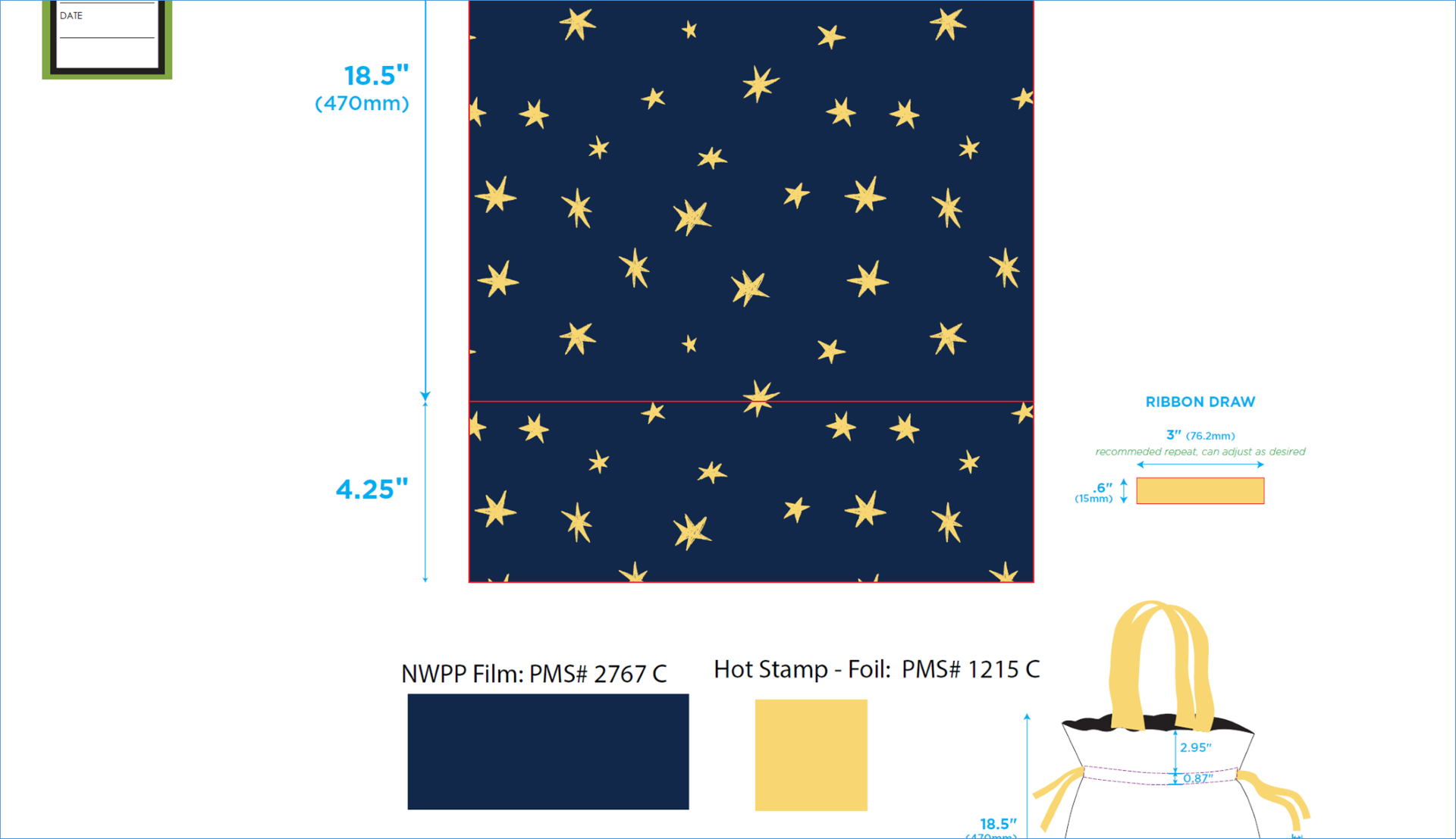
| Order Level Gift Wrap Code | The gift wrap style code. Currently 022 (plain blue wrap) is the only available option — leave blank if not using gift wrap |
Plain blue wrap colors
The plain blue wrap (code 022) uses two Pantone (PMS) spot colors. Use these values if you want to reference the exact wrap colors in storefront marketing, gift-message design, or packaging mockups.
| Color | Pantone (PMS) | Approximate hex |
|---|---|---|
| Dark blue | 2767 C |
#13294B |
| Gold | 1215 C |
#FBD872 |
Pantone numbers are the authoritative values — Ingram's supplier uses them to keep printed-ink colors consistent between runs. The hex codes are screen approximations of the Pantone colors; they should not be treated as exact matches for printed packaging.
Special Handling (Optional)
If you have promotional or special project codes from Ingram (format: 5XXXX), enter them here. These are typically provided by your Ingram account manager for specific campaigns or programs.
Line Item Defaults (Optional)
These settings apply at the individual book level within an order.
Line Level Backorder Code
Overrides the order-level backorder setting for individual line items. Leave at Use Order Default unless you need different backorder behavior for specific products.
| Option | What it does |
|---|---|
| Use Order Default | Inherits the Backorder Code set in Backorder Settings |
| Y – Backorder This Line Item | Always backorder this item if out of stock |
| N – Do Not Backorder This Line Item | Cancel this item if out of stock |
| B – Backorder Only if NYR | Only backorder if the title is not yet released |
Item Number Type
Controls how Ingram identifies book titles in order requests. Auto-detect (default) works correctly for all standard Ingram catalog titles — the app detects whether to use ISBN-10, ISBN-13, or UPC automatically. Only change this if Ingram advises a specific format.