Order Types & Pre-orders
When a customer orders multiple titles at once, Ingram doesn't always ship every line item the same way or at the same time. The Order Type setting (in CDF Lite Settings) controls how Ingram groups items into shipments and what happens to items that aren't immediately available — backorders, restocks, and pre-orders.
This page explains what each Order Type does, walks through the practical implications for pre-orders, and helps you choose the right one for your store.
The three Order Types
Emersoft Books exposes the three Order Types Ingram supports. The default is LS – Dual Shipment, which works for most stores.
| Order Type | Behavior | Best for |
|---|---|---|
| LS – Dual Shipment (recommended default) | Up to two shipments per order: one on the order date, one on the cancel date. | Most stores. Mostly in-stock catalog with occasional backorders. |
| RF – Release when Full | One shipment containing every line item, sent only once every item is available. | Customers who want consolidated shipments and don't mind waiting. |
| EL – Multi Shipment | Each line item ships as soon as it's available — potentially many shipments per order. | Pre-order-heavy stores, or stores that prioritize fast individual ships. |
Set the Order Type for your store in Apps > Emersoft Books > Settings > CDF Lite > Order Type. Changing it affects all future orders.
LS – Dual Shipment in detail
LS is the default and the right choice for most stores. The name "Dual Shipment" describes the practical limit: at most two shipments per order.
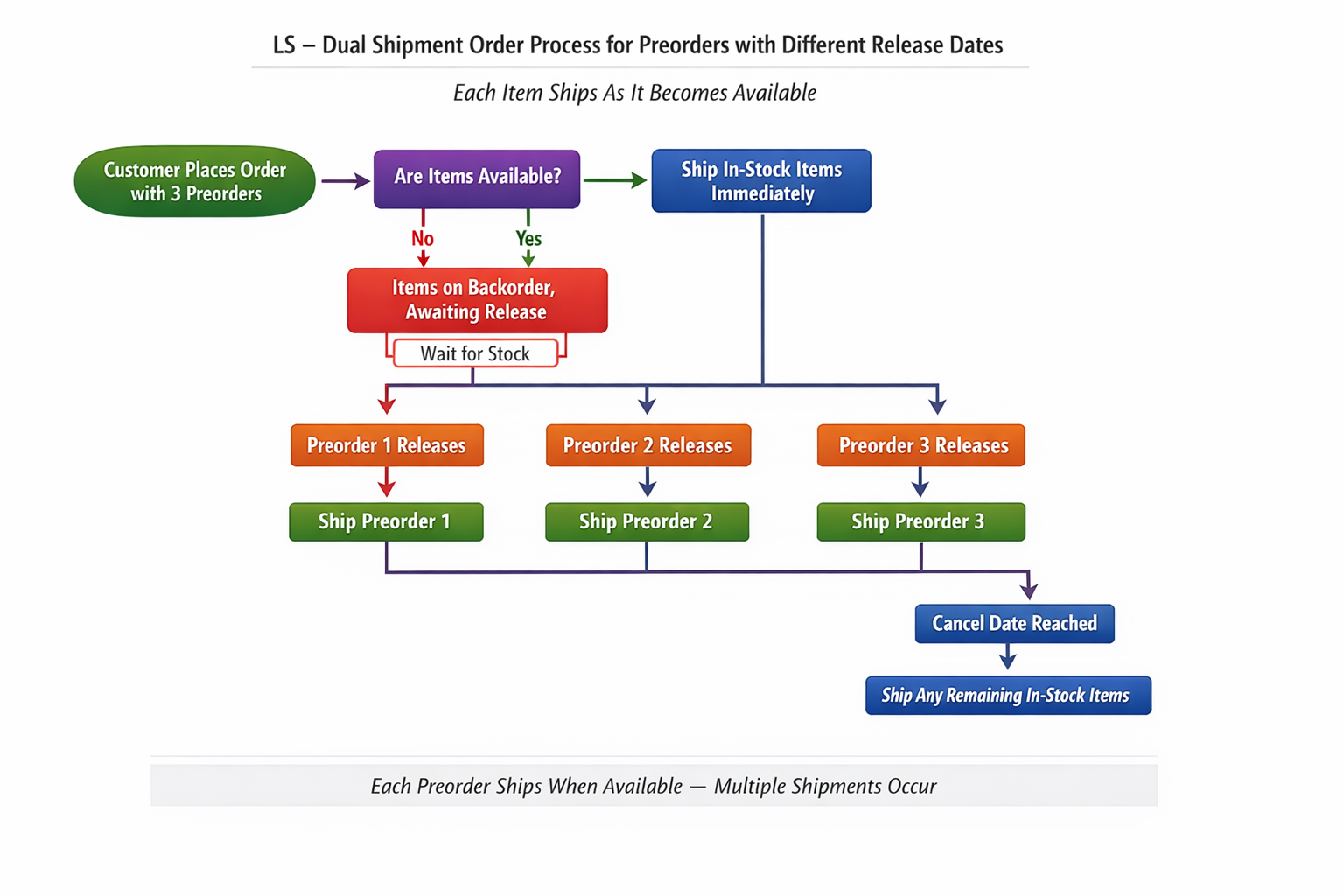
How LS works
- First shipment — order date. Everything in stock at any Ingram fulfillment center ships immediately.
- Second shipment — cancel date. On the order's cancel date, anything that has since been allocated (backorders that restocked, pre-orders that released) ships in a single second shipment.
- Anything not allocated by the cancel date is canceled. This includes pre-orders whose publication date is after the cancel date.
That third point is the one that catches stores out, especially with pre-orders. The order type sets the cap at two shipments, so anything still pending on the cancel date is dropped — even pre-orders that are scheduled to release later, and even if your account's per-line backorder settings would normally hold them.
LS overrides per-line auto-backorder settings
Even if a pre-order line has auto-bo-cancel = N (do not auto-cancel) or is flagged NYR (Not Yet Released), it will still be canceled on the cancel date under LS. The order type wins. To keep pre-orders alive past the cancel date, use EL – Multi Shipment or set the cancel date past the latest expected publication date.
Example: an order with three pre-orders
A customer orders three pre-orders on 15 April 2026 with publication dates:
| Title | Publication date |
|---|---|
| Book A | 15 September 2026 |
| Book B | 27 October 2026 |
| Book C | 12 January 2027 |
What ships, under LS, depends entirely on the order's cancel date:
| Cancel date | What ships | What happens to the rest |
|---|---|---|
| 5 June 2026 | Nothing — no titles released by then | All three are canceled on 5 June |
| 1 October 2026 | Book A (allocated on 15 Sept, ships 1 Oct) | Books B and C are canceled on 1 October |
| 1 February 2027 | All three ship together on 1 February (allocated as each released, held until then) | Nothing canceled |
So under LS, a customer placing this order won't receive Book A months before Book C — the order is held to the cancel date. If you want each pre-order to ship as it releases, you need EL (and possibly an account-level change — see Account-level release rules below).
RF – Release when Full
Under RF, nothing ships until every line item on the order is available. Once the last item is allocated, the entire order ships in a single consolidated shipment.
This is rarely the right choice if pre-orders are involved — the customer waits for the latest-releasing title before receiving anything. RF makes sense when:
- A customer explicitly requests a consolidated shipment
- The order contains only in-stock or short-restock items
- You want to minimize per-order shipping cost paid to Ingram
EL – Multi Shipment
Under EL, each line item ships independently as soon as it's available. An order with five items could result in five separate shipments to the customer.
EL is the right choice when:
- You sell a lot of pre-orders with widely-spaced release dates and you want each to ship the moment it releases
- Customer satisfaction with delivery speed outweighs shipment consolidation
- You're comfortable paying Ingram's per-shipment fees on multiple shipments per order
EL works best when combined with the account-level release flag set to R (Release) — see below.
Cancel date
The cancel date is the deadline on each PO sent to Ingram. It's calculated by Ingram based on the order date and your account configuration (typically order date + a fixed number of days, often 60 or 90 days).
Under LS and RF, the cancel date determines when pending items are dropped. Under EL, cancel date matters less because items can ship individually as available.
To see the cancel date on a specific order, look at the order timeline entry in Shopify Admin > Orders — see Finding the Purchase Order Number for how to expand the timeline entry.
To change the cancel-date window for your account, contact your Ingram account manager.
Account-level release rules
Beyond the Order Type, there's an account-level Ingram setting called the Back Order Hold Release Code that controls whether allocated lines can ship individually before the cancel date is reached. It is set on Ingram's side, not in the Emersoft Books app.
| Code | Behavior |
|---|---|
| H – Hold | Lines wait — even when individually allocated, they're held until other lines are ready or the cancel date hits. |
| R – Release | Lines release as soon as they're allocated — they ship without waiting for the rest of the order. |
If you've set the Order Type to EL but pre-orders are still being held until the cancel date, the account is likely set to H. Contact Ingram customer support or your Ingram account manager to switch the flag to R.
Where to check or change this
The Back Order Hold Release Code is only visible in Ingram's internal account profile — it isn't exposed in any merchant-facing portal. To check or change it, contact support and the Emersoft team can liaise with Ingram on your behalf, or contact your Ingram account manager directly.
Choosing the right Order Type
Quick recommendations based on store profile:
| Your store's situation | Recommended Order Type | Notes |
|---|---|---|
| Mostly in-stock titles, occasional backorders | LS (default) | Two-shipment cap is fine — most items ship immediately, the rest within the cancel-date window |
| Strong preference for one shipment per order, willing to wait | RF | Best when the customer explicitly requests it |
| Heavy pre-order business with widely-spaced release dates | EL + R flag |
Each pre-order ships when it releases. Confirm the account flag is R with Ingram |
| Mixed — some customers want consolidation, some want speed | LS (default) | LS is a sensible compromise. Per-customer behavior would require manual handling |
For most stores, leave the Order Type at LS. Switch only after a specific customer scenario or business model warrants it.
How this affects what your customer sees
Regardless of the Order Type, every shipment Ingram creates returns a separate tracking number to your Shopify order. Your customer is notified by Shopify (using your store's notification settings) each time a shipment goes out — so:
- LS typically results in one or two shipping notifications
- RF results in one shipping notification, often weeks after the order
- EL can result in many shipping notifications spread over time
If you set the Order Type to anything other than LS, consider how you communicate this on your storefront — for example, a note on pre-order product pages explaining that the customer may receive multiple shipments.
Related
- CDF Lite Settings — Order Type — where to change the Order Type
- Ingram CDF Lite — Out-of-stock books and backorders — how the app handles out-of-stock at the catalog level
- Import a Single Book — Pre-order titles — how pre-order metadata is set on imported products